How to Install RingCentral
The total RingCentral Solution is comprised of multiple applications that work together. However, when someone mentions the installation of RingCentral, they often refer to the RingCentral desktop application.
RingCentral Desktop Application Installation
NOTE: The following instructions assume that you are using a Windows PC.
To install the RingCentral desktop application:
Open your web browser and navigate to the following URL:
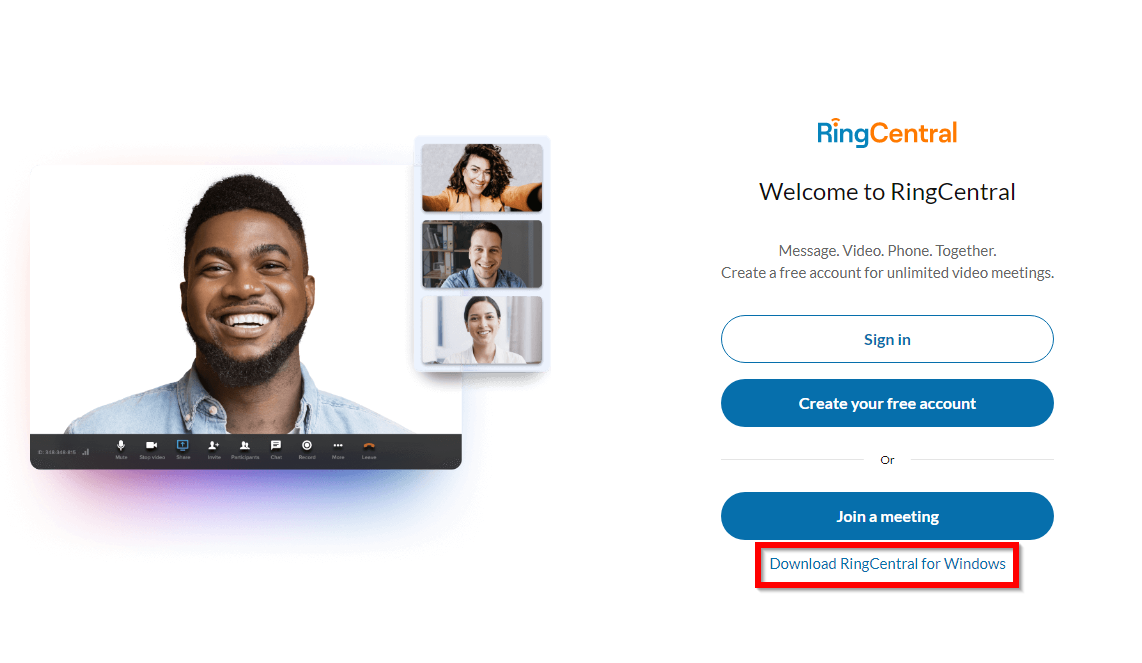
https://app.ringcentral.com/Near the bottom-right, click the link for Download RingCentral for Windows.
Save the file to your computer, where you are able to find it later.
By default, this location is usually your Downloads folder.
Navigate to the location of where you saved the downloaded file.
Right-click the
.exefile and in the context menu, click Open.NOTE: Depending on your system settings, you may need to click Run As Administrator and use an Administrator account and/or credentials to install the application.
A modal window for RingCentral Setup displays, containing a progress bar.
Wait for the setup to complete, the modal window will disappear.

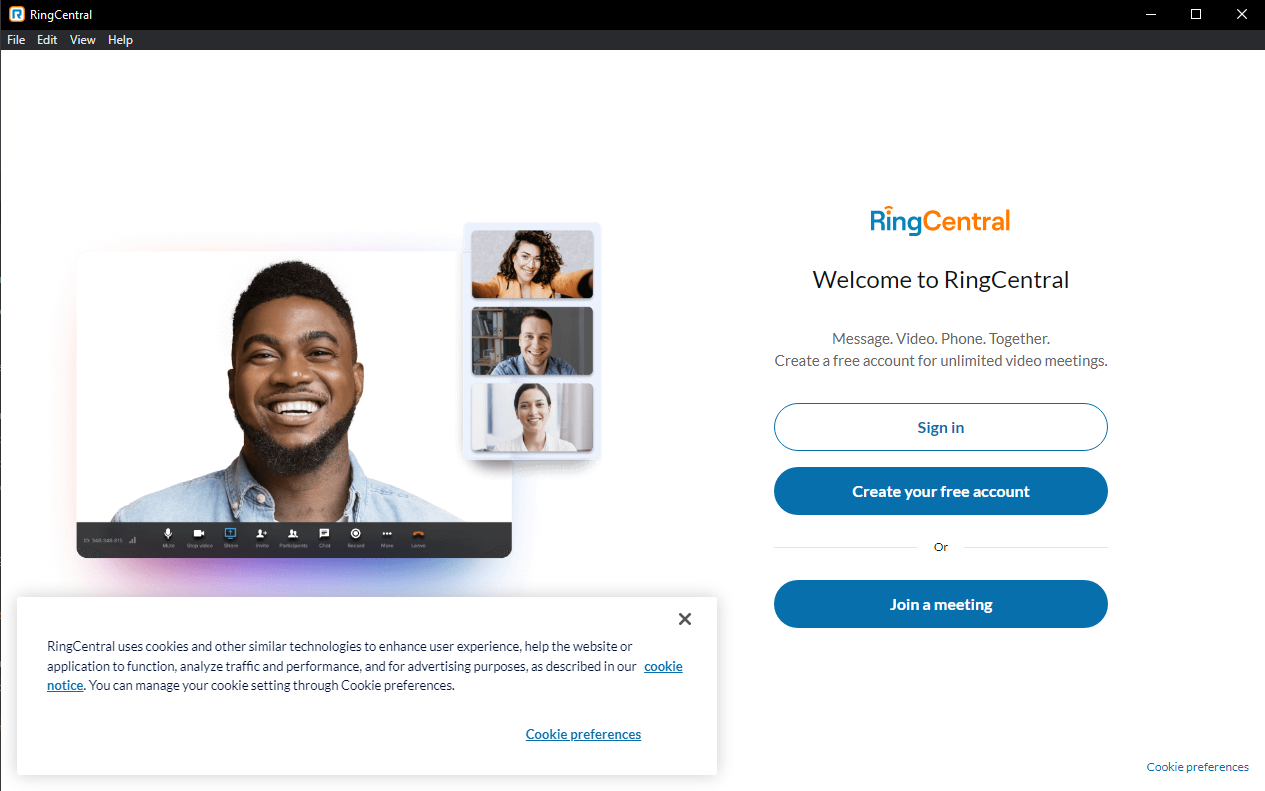
If successful, a new modal window for RingCentral appears, containing buttons to sign in, create an account, or join a meeting.